Overview
In this lab, you will implement a simple game in which a crab attempts to shoot coconuts with laser beams as they fall from the sky. You will use the Observer Pattern to handle objects disappearing when they collide, as well as updating a scoreboard. This is a two-week, group lab.
Gameplay
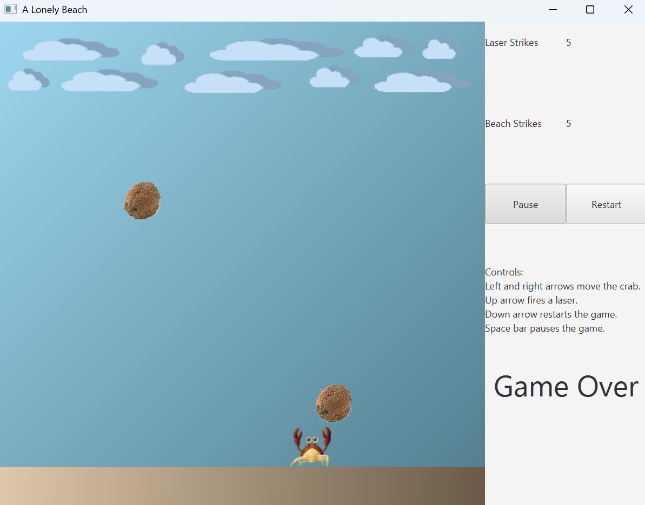 Coconuts are introduced at a random x-position along the top of the window
and fall downward. The crab can move left or right with the left and right
arrow keys. It can shoot a laser upwards by pressing the up-arrow key. When
the laser hits the coconut, both should be destroyed. If the coconut
reaches the beach, it will be destroyed.
Coconuts are introduced at a random x-position along the top of the window
and fall downward. The crab can move left or right with the left and right
arrow keys. It can shoot a laser upwards by pressing the up-arrow key. When
the laser hits the coconut, both should be destroyed. If the coconut
reaches the beach, it will be destroyed.
The number of coconuts destroyed by laser beams is counted, as is the number of coconuts reaching the beach. These counts should be displayed on a scoreboard somewhere. See the example in the screenshot, but you are encouraged to create a fancier scoreboard. You can also set it up in a different scene so it can be moved separately from the main window.
When a coconut hits the crab, the game is over, and some game-over indicator should be displayed. The game should stop, and all inputs should be locked out except the restart input. Hitting the down arrow should restart the game from the beginning and reset the scoreboard. Anytime the game is not over, pressing the space bar should pause it.
You are not allowed to change the key bindings described above, though you can add more key bindings if you wish.
Background
Observer Pattern
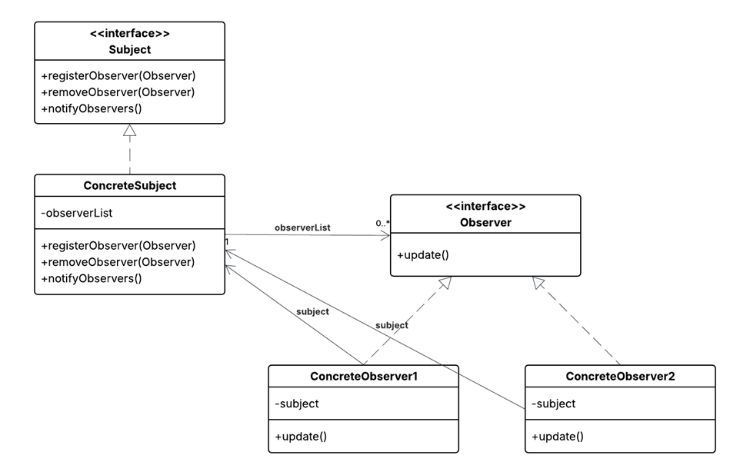 The Observer Pattern allows for one-to-many
communication. In the pattern, we have a subject whose state changes we are
interested in. We also have various observers who need to be notified and
updated whenever the subject’s state changes. The subject has a list of
observers and can add and remove observers. Observers can request to be
added or removed. When the subject’s relevant state changes, it can iterate
over the list of observers and update them.
The Observer Pattern allows for one-to-many
communication. In the pattern, we have a subject whose state changes we are
interested in. We also have various observers who need to be notified and
updated whenever the subject’s state changes. The subject has a list of
observers and can add and remove observers. Observers can request to be
added or removed. When the subject’s relevant state changes, it can iterate
over the list of observers and update them.
The subject often implements a Subject interface with the methods
registerObserver(), removeObserver(), and notifyObservers(). It also
usually has some method that sets the relevant state values and then calls
notifyObservers(). Observers implement the Observer interface, which
contains a single method called update, whose arguments depend on the
state information the subject sends when it notifies its observers. The
observer implementations also typically include a reference to the
subject, which allows them to subscribe and unsubscribe.
Introductions
Assignment Repository
You will work in a team of two for this assignment. Both team members must have access to a GitHub repository that the instructor can also access. The repository will be set up for at least one team member. Pick a particular member’s repository and add the second team member to that by visiting the project settings and navigating to Collaborators and teams. From there, click Add people, enter your teammate’s GitHub handle, and grant them write access. Both team members should then be able to clone, pull, and push to the repository.
Copy the repository link and use it in IntelliJ to create a new project using the Project from Version Control option. You will likely need to sign in to your GitHub account or use a token to connect IntelliJ to GitHub; if you use a token, set the expiration to a date after the course ends.
The project is set up to use Java 25 with JavaFX 25. The path to JavaFX must be
C:\Program Files\Java\javafx-sdk-25\lib
Note the javafx-sdk-25; if you have something like javafx-sdk-25.4.5,
then you must rename your folder to match the javafx-sdk-25 name. Talk to
your instructor if you do not know how to do this.
Starter Code
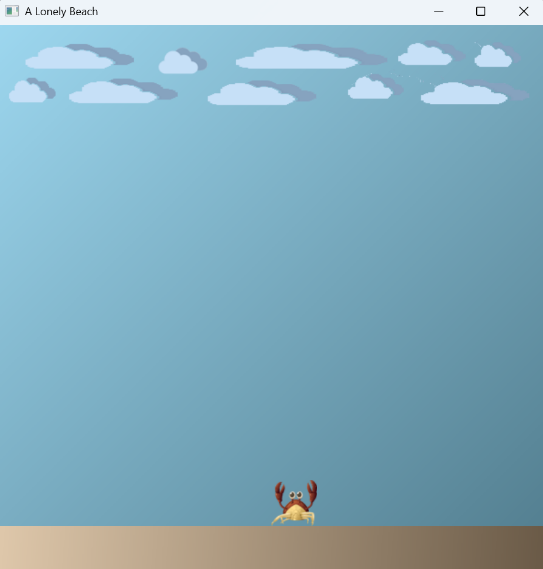 The starter code is an FXML-based program that creates a window depicting
a beach, a sky, and a single crab, as shown in the screenshot. Pressing the
left and right arrow keys will cause the crab to move left or right. If for
some reason you do not have access to a repository, the starter code can be
found in coconuts.zip.
The starter code is an FXML-based program that creates a window depicting
a beach, a sky, and a single crab, as shown in the screenshot. Pressing the
left and right arrow keys will cause the crab to move left or right. If for
some reason you do not have access to a repository, the starter code can be
found in coconuts.zip.
The following provides a brief overview of the files you have been given. Each file is heavily documented with more information than is listed here. You are allowed to add your own attributes and methods, and modify the provided methods, especially in areas marked with TODOs. You cannot remove any attributes or methods listed below or in any of the requirements or drastically change the function of any method given to you. You can also choose not to use the provided methods.
coconuts.fxml
FXML file that defines a basic Pane to which you will add your graphics
objects. You will most likely have to edit this file to add additional
panes or labels to display a scoreboard that tracks the number of coconut
strikes on the beach and laser strikes on coconuts.
GameController.java
This file handles the user’s key presses and forwards them to the
GameManager. This file also contains the Timeline object, which
represents the game loop. At a set interval, the Timeline object will
call the GameManager’s step() method to advance the game by one tick.
The controller also manages pausing and restarting the game. Please do not
alter this pausing-and-restarting logic. The only part of this file that
you should edit is adding additional GUI elements and arguments to the
GameManager’s constructor.
GameManager.java
The file creates, manages, and removes game objects. The primary method is
step(), which performs operations such as advancing each game object and
checking collisions between objects. There are numerous TODOs throughout
this file that indicate the major elements that you must implement. You
may also need to edit some methods, like restart(), once you have
implemented the scoreboard. You may leave unused methods in place, but you
may not remove them.
When the game is over, the gameOver flag in the GameManager should be
set to true. This will cause the controller to pause the Timeline and
lock out all user input except the restart input. Hitting the restart key
should call the GameManager’s restart() method and perform any
necessary operations to restart the game.
IslandObject.java
This is the superclass for all the objects in the game. All IslandObject
objects have an ImageView that contains the image representing each
object. To move an object, change the x and y values, and they will be
redisplayed during the step() of the GameManager.
The following describes the major methods of this class. You can see some
of these methods implemented in the provided subclasses for Crab,
Beach, and Sky. You will need to implement two more subclasses: one
for Coconut and one for LaserBeam. There are images in the images/
folder that you can use for both. The suggested dimensions for the coconut
are 50 x 50, and for the laser beam, 20 x 40. It is possible that other
dimensions will work, but these values are known to work with the
collision and hit details discussed below.
isMethods
isGroundObject(), isFalling(), and isStationary() are boolean methods
that are meant to allow you to identify any IslandObject without having
to use instanceof. You should not be using instanceof in this lab. For
example, the Crab returns true for isGroundObject(), false for
isFalling(), and false for isStationary(). Add additional “is” methods
if needed.
canHit
canHit(IslandObject other) determines whether one object can hit
another. Hits in this game are one-directional. For example,
coconut.canHit(beach) would return true, but beach.canHit(coconut)
would return false. Coconuts can hit the beach and the crab. Laser beams
can hit coconuts and the sky.
hittableHeight
hittableHeight() returns the y coordinate of an object, which is used to
determine whether the bottom and top of two objects are close enough to
count as a hit. The hittable height for falling and stationary non-ground
objects is the bottom of their ImageView. For everything else, the
hittable height is the top of their ImageView. The y attribute for an
IslandObject should be the location of the top of the ImageView, and
you can get the y coordinate for the bottom by using the height of the
ImageView through getFitHeight(). Note that this only works because the
IslandObject superclass explicitly sets the ImageView’s fit height.
isTouching
isTouching(IslandObject other) returns true if this object can hit the
other object and if the following two conditions are met. The first is
that the difference in hittable height between the two objects is less
than or equal to some threshold. A threshold of 5 should work with the
suggested move speeds of the coconuts and laser beams (see below). The
second is that the two objects overlap horizontally. This occurs if the
left edge of object1 is less than the right edge of object2, and the left
edge of object2 is less than the right edge of object1.
step
The step() method for each object is called each step() of the game.
For most objects, the step() method does nothing. For objects that move
on their own, such as coconuts and laser beams, the step() methods
increase or decrease the object’s position by some amount. It is suggested
that you have the coconut fall by 5 pixels per step and have the laser
beam rise by 5 pixels per step. This is slow enough for the player to see
what is going on and makes it more likely that the hittable heights of a
coconut and a laser beam will be no more than 5 pixels apart.
Scoreboard
In addition to the TODOs in the starter code and implementing the mechanics described above, you must add a scoreboard class to track the number of coconuts that are destroyed by lasers and the number of coconuts that hit the beach.
Observer Pattern
You must implement the Observer Pattern to handle one object hitting another. You must create a subject that responds to objects hitting one another and multiple observer classes that capture the effects of various hits. For example, the scoreboard might need updating, objects may need to disappear, or the game may terminate depending on the type of hit. You can use the Observer Pattern in lots of ways, but at a minimum, you must use it to display score information on the score panel and make coconuts and laser beams disappear from the screen.
One of the challenges of this lab is figuring out a good subject. The subject should be persistent throughout the game and accessible to any observer who wants to register with it. The subject doesn’t have to be a tangible object; it can be a concept or container. Typically, a subject should be an event.
In your Observer Pattern implementation, you must have interfaces for
Subject and Observer that your subjects and observers implement. The
Subject and Observer interfaces should have the methods listed in the
Background section at the beginning of these lab instructions.
Writeup
You will have two weeks to work on this lab. Your instructor may specify deliverables in the first week. By the end of the second week, create a Word document containing the following:
In addition to completing the requirements listed above, your team must include a PDF writeup with the following information. The writeup should be placed in your MSOE package folder.
Names of all team members, their section(s), the date the assignment was started, and the name of the assignment.
A Minimal Solution Diagram showing how you applied the Observer Pattern. As for previous labs, do not use a reverse-engineer tool to create the diagram; it must be drawn by hand using Enterprise Architect. To help you get started, we have created the EA file
island.qea. You may modify this file however you like, including moving classes, changing associations and generalizations, adding new classes, and removing classes you do not need. Consistent with the requirements for minimal solution diagrams, the diagram properties have been set so type information is not shown.List the contributions of each team member. What classes each team member contributed substantially toward as well as any additional, major tasks completed.
Screenshots of your game showing at least the following (use the Snipping Tool or an equivalent):
- a laser beam in flight towards a coconut,
- the scoreboard after several coconuts have been destroyed and several have hit the beach, and
- the end of a game after the crab has been hit.
Answers to the following reflection questions:
- What are the subject classes and what state changes resulted in updating the observers?
- Which observers did you create, and what does each one’s
updatemethod do? - What would you do differently if you were to start this lab again?
- What would you change about this lab if it were repeated in a later year?
Submission
Place the PDF in the top-level folder of your repository or wherever your instructor specifies in Canvas. If it is not in this location, it may not be graded. Before submitting, make sure you have
- tested your game in different scenarios: the laser hitting and missing coconuts, coconuts hitting the beach, the crab being hit, and pausing and resuming with the space bar,
- confirmed there are no uses of
instanceofin your code, and - added the write up described above.
Then add “DONE” to the README and commit and push. If you do not add
“DONE” to your README, your instructor will not know that your
submission is ready to grade.
Frequent Problems and Questions
- Make sure the implementations of
isGroundObject,isFalling,isStationary,canHit, and otherIslandObjectmethods are correct for each class. - Make sure you are using operations like
isFallingandisGroundObjectinstead ofinstanceof.instanceofis an example of content coupling. You may find it helpful to add additional predicates to your hierarchy. - Do not forget that the upper left corner of every
Node(includingImageView) is 0,0. This means y=0 is the top of an image. This is important when writinghittableHeightandisTouching. - A major portion of this lab is determining where to edit the code. Consult with your instructor if you are not confident about where to make changes.