This is an individual lab.
Most people are used to calculators which have parentheses so users can control the order of operations. For example, you might enter 3 + (4 * 5) to compute 23. An alternative that was popular decades ago was to use RPN which allowed you to enter the numbers and then apply operations. The HP-35 was one such calculator. See this HP-35 emulator. To use it, click on the 3, ENTER↑, 4, ENTER↑, 5, ×, +, and notice the calculator displays 23.
You are being given an implementation of a similar calculator. For most
students, you will get the code through GitHub Classroom, but this code
is also available in the file calculator.zip. While
this calculator uses RPN, it has other key differences from the HP-35.
You will not attempt to emulate the HP-35. Instead, you will extend the
provided calculator so it supports undo and redo through the Command
pattern.
To get started, check out (or download) the code and open the project in
IntelliJ. Attempt to build CalculatorTest. If you have errors saying
"package org.junit does not exist", then open CalculatorTest.java (in
IntelliJ) and select "Add 'JUnit5' to classpath". This will cause
IntelliJ to prompt you to download the library from the Maven Repository;
click OK. Once built, right click on CalculatorTest in the project
browser and execute all of the tests. These test just the basic calculator
operations; they do not test undo and redo. You will test those in other
ways.
Once the built-in tests are working, confirm that your calculator works through the console. Run the program and enter the bold-face text as shown below:
4,5*\
      Display: 4
      Multiply
      Display: 20
q\
      Quit
      Final result: 20
To compute "(18 - 3) * 2", enter
18,3-2*q
Note the comma (,) roughly corresponds to the "ENTER↑" command on the HP-35; it signals that a complete number has been entered. Note that values are being placed on a stack; try
2,3,4,5*-+q
Note that the - computes 3-20; that is, the current display is subtracted
from the next value on the stack. Operations take the top one or two values
from the stack, compute the result, and put the result back on the stack.
The calculator then displays the top value on the stack.
So you have an idea of where you are headed, the following shows what happens if the user decides to add instead of subtract and then goes on to do other operations:
18,3-2*\
      Display: 18
      Subtract
      Display: 15
      Multiply
      Display: 30
u\
      Undo: Multiplication
      Display: 2
u\
      Undo: Append digit
      Display: 15
u\
      Undo: Subtraction
      Display: 3
+\
      Add
      Display: 21
2
*\
      Multiply
      Display: 42
q\
      Quit
      Final result: 42
Note that undoing the multiply (after displaying 30) results in displaying a 2 in the middle of this run; this is the value currently on the top of the stack.
Detailed Requirements
- Do not change the following files:
Main.java: processes the input commands and calls the calculator manager to do the work. It then displays the results. Seemainin this class for the complete set of user commands.Calculator.java: this implements a domain-level class that captures the calculator’s behavior. When you want to add two numbers, call a method onCalculator; do not do the operations directly. That is, every operation you implement will send a message toCalculatorto do the work. In this way, future changes to the calculator would simply require an update to this class.History.java: This is theHistoryclass from the phonebook example with classCommandrenamed toCalculatorCommand.CalculatorCommand.java: Defines the abstract class for all calculator commands.NumberStack.java: Used to track the results of computations.- Any file in the
.githubfolder.
- You could support undo by storing the complete state of the calculator before each action. This would be unrealistic because the extra storage this would require would reduce battery life. On the other hand, if you try to store an absolutely minimal state, it can be difficult to ensure correctness. Work towards a middle ground between storing too much and too little.
- After undoing any operation except
appendDigit, the calculator should be in the state that allows new numbers to be entered (newNumbershould be true). That is, undoing most operations means that the next digit starts a new number. UndoingappendDigitshould leave the next digit state as it was before theappendDigitcommand was executed. That is,appendDigitwill need to save and restoreCalculator.newNumber.
How to get started
- Start by getting the calculator tests to pass. You should not need to write any code, but you may need to refine your project setup as discussed above.
- Implement the execute and unexecute for the add command. The execute
operation will be very similar to the code that is in
Main.java, and implementing unexecute will boil down to figuring out what data to save in execute and restoring the appropriate items in the unexecute. Remember to call classCalculatormethods to do the work. - Revise
CalculatorManager.javato use the add command rather than simply adding values. Make sure you can handle an input sequence like3,4+ur. - Implement the other operations-subtraction and multiplication-in the same way. Test this portion.
- Implement the remainder of the system.
NOTE: Do not change any files in the .github folder and do not
change Calculator.java, Main.java, History.java, or
NumberStack.java. If you do make changes to these by mistake, please talk
to your instructor and they will assist in correcting the issue.
Confirming you are finished
Before submitting, check that your solution ran correctly. Assuming your instructor is using GitHub Classroom, tests are run on each commit. You must confirm that the tests ran successfully:
- Log in to GitHub Classroom and browse to your assignment repository
- Click on the Actions tab
- In the section titled All workflows, click on the top workflow run. This will be the most recent one.
- If you see a green checkmark under
classroom.yml, this means all tests passed. A red plus indicates at least one test failed. - To review the tests, click on
run-autograding-tests. - If none of the tests are running: expand Test 1 (by clicking the arrow) and check for compilation errors. If you do have compilation errors, make sure the project builds locally and that all changes have been committed and pushed.
- Assuming at least some tests pass, click on the
>symbol by Autograding Reporter and scroll to the bottom to see the Test runner summary. Passing tests show the same number in the Test Score and Max Score columns. You can see the number of tests that pass on the Grand total tests passed line. This example shows that just one test passes so more work is needed. - To debug a particular test, run the program in IntelliJ using the test data in the corresponding file; these are in the
console_testfolder in your project. The inputs and expected outputs for each test run are in this folder.
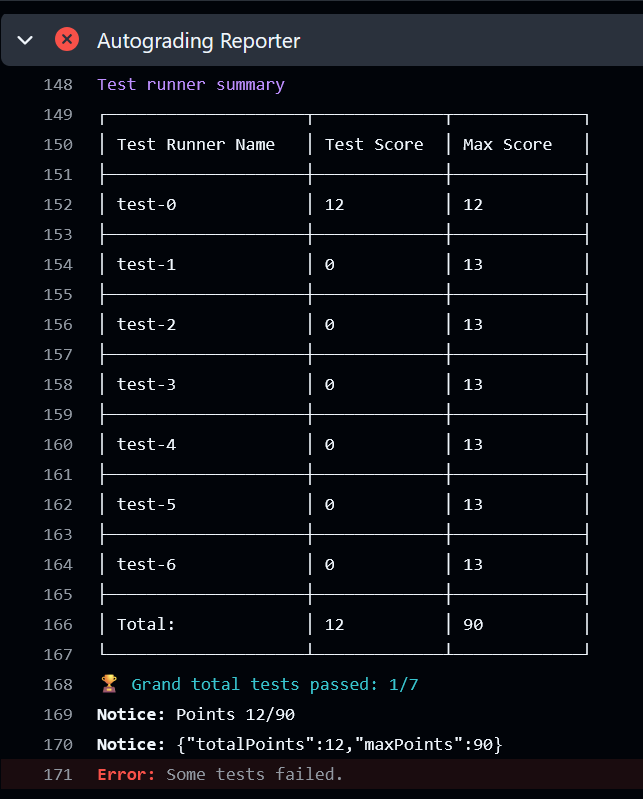
Repeatedly commit your code until all autotests pass. You can get partial credit for most tests passing, but once you get one test passing it is usually straightforward to get the others to pass as well. If you cannot, talk to your instructor! They often can help you narrow down the problem.
Submitting
Once your solution is working, make sure you have satisfied your instructor's coding standard. Some common issues:
- Make sure you have associated your name with every class you write or modify, including the ones we started for you.
- Make sure the code is formatted consistently.
- Be sure to not use package visibility. All data you add must be either
privateorprotected. - Double-check that you have used the command pattern. If you had to modify
Calculator.javaor theunexecutedoes anything but reset elements of thecalculatorstate, you probably are not using the pattern effectively. In most cases, your code is submitted through GitHub Classroom. Be sure to answer any questions in Canvas to finish the assignment.
Fixing problems
If one of the runs shows an error, it is challenging to look at the output captured by GitHub to determine what went wrong. A much easier way is to run the code on the sample input in IntelliJ where you can use standard debugging tools. Note the inputs and expected outputs are in the
console_testfolder.When there is a run with an error, you might try clicking on the Explain error button on the when looking at the autograde output. The fixes may not be helpful, but this sometimes shows what lines had the wrong output.
The
Calculatorclass has atoStringmethod that describes its state. Note this is a debug line inmainto print out the state. This can be useful when chasing down errors.Typing a long input into IntelliJ is slow and error-prone. To run your code on a sample input file,
- Edit the run configuration
- Visit the Modify options menu
- Select Redirect input - this adds a new input box
- Click on the folder icon in the Redirect input from box and browse to the file
- Click OK and run your program
The most frequent issue is failing to reset everything the calculator changes when executing an operation. For example, it is often not enough to save and restore the accumulator and the display, you also have to save and restore other flags. But do remember there is a requirement to not save and restore everything on each command. That might result in the correct output, but it does so at the cost of requiring a lot more memory than necessary. This would not be an issue for small computations, but can become an issue for very large ones. So be careful to review the above requirements about saving and restoring data.
Updates to the starter code
From time to time we may need to update the starter code used for this assignment. If this happens, we will suggest updating your repository to merge the changes into your project. The steps for doing this:
- Visit the code page in GitHub and find where GitHub says This branch is…1 commit behind *the starter repository. Click on the 1 commit behind text.
- You should be on a page which says “Comparing changes”. There should be green text on the page saying “Able to merge.” If not, contact your instructor.
- Click on GitHub Classroom: Sync Assignment".
- Click on the button Merge pull request and then Confirm Merge. GitHub should now say the changes have been Merged.
- If the tests were passing before, confirm they are still passing.